Process Commands
You can use the process command to execute different one-to-one functions which produce one output for one input given.
Logpoint Process Commands are:
AsciiConverter
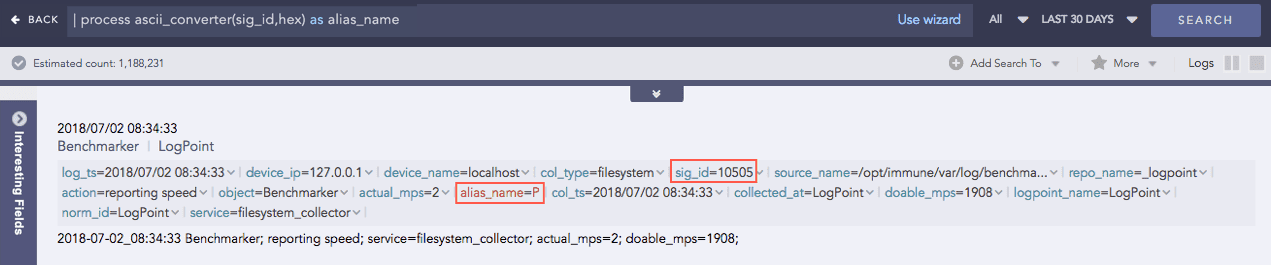
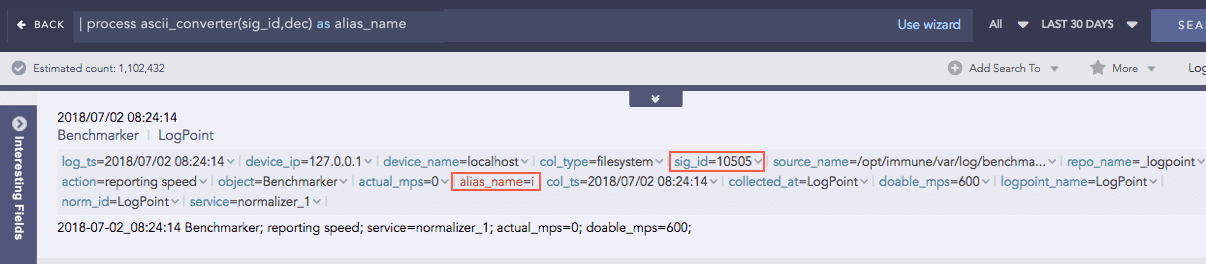
Converts hexadecimal (hex) value and decimal (dec) value of various keys to their corresponding readable ASCII values. It supports the Extended ASCII Table for processing decimal values.
Hexadecimal to ASCII
Syntax:
| process ascii_converter(fieldname,hex) as string
Example:
| process ascii_converter(sig_id,hex) as alias_name
Decimal to ASCII
Syntax:
| process ascii_converter(fieldname,dec) as string
Example:
| process ascii_converter(sig_id,dec) as alias_name
Clean Char
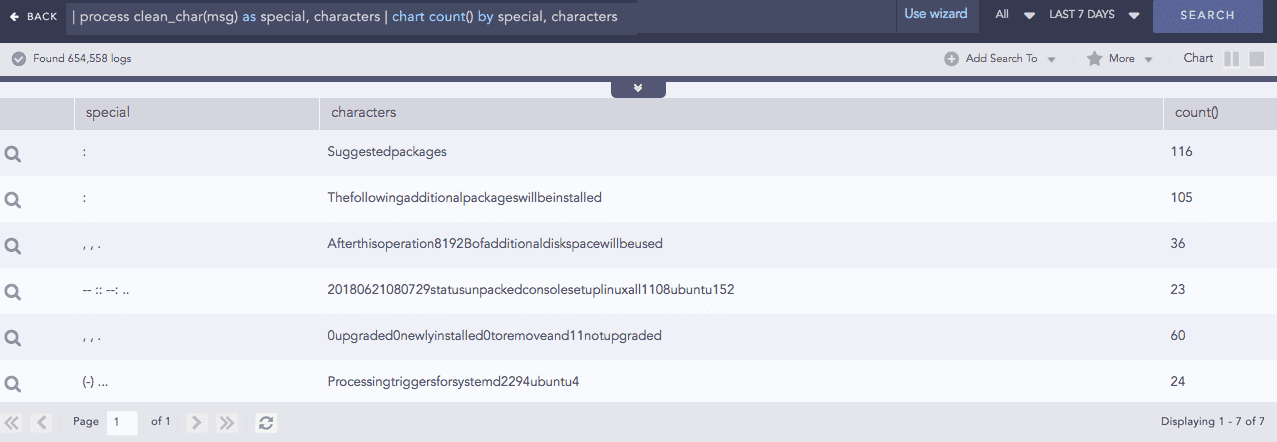
Removes all the alphanumeric characters present in a field-value.
Syntax:
| process clean_char(<field_name>) as <string_1>, <string_2>
Example:
| process clean_char(msg) as special, characters
| chart count() by special, characters
Codec
Codec is a compression technology with an encoder to compress the files and a decoder to decompress. This process command encodes the field values to ASCII characters or decodes the ASCII characters to their text value using the Base64 encoding/decoding method. Base64 encoding converts binary data into text format so a user can securely handle it over a communication channel.
Syntax:
| process codec(<encode/decode function>, <field to be encoded/decoded>) as <attribute_name>
Example:
| process codec(encode, name) as encoded_name
Here, the “| process codec(encode, name) as encoded_name” query encodes the value of name field by applying encode function and displays encoded value in encoded_name.
Compare
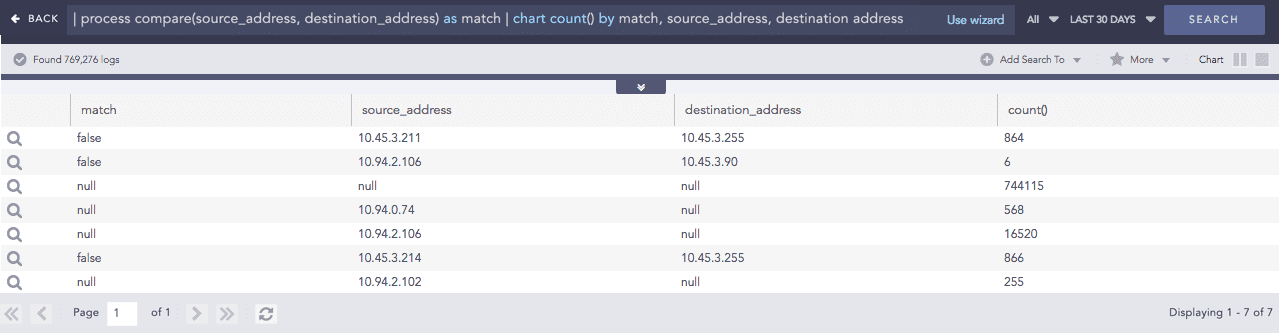
Compares two values to check if they match or not.
Syntax:
| process compare(fieldname1,fieldname2) as string
Example:
| process compare(source_address, destination_address) as match
| chart count() by match, source_address, destination address
Compare Network
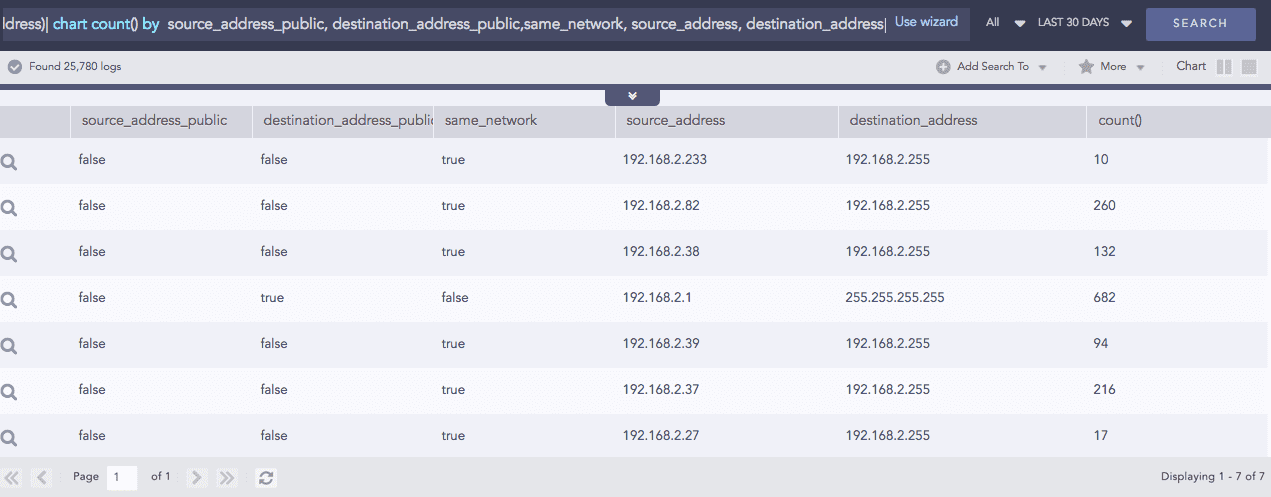
Takes a list of IP addresses as inputs and checks if they are from the same network or different ones. It also checks whether the networks are public or private. The comparison is carried out using either the default or the customized CIDR values.
Syntax:
| process compare_network(fieldname1,fieldname2)
Example: (Using default CIDR value)
source_address=* destination_address=*
| process compare_network (source_address, destination_address)
| chart count() by  source_address_public, destination_address_public,
same_network, source_address, destination_address
Count Char
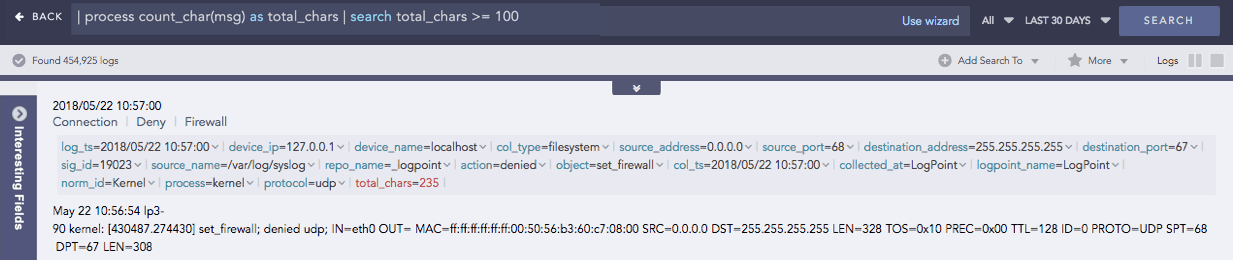
Counts the number of characters present in a field-value.
Syntax:
| process count_char(fieldname) as int
Example:
| process count_char(msg) as total_chars
| search total_chars >= 100
CountOf
Takes a field as a parameter and counts the number of times the element(s) occurred in the field’s value.
Syntax:
| process count_of (source field name, string, kind)
Here, the source and search parameters are required.
Example:
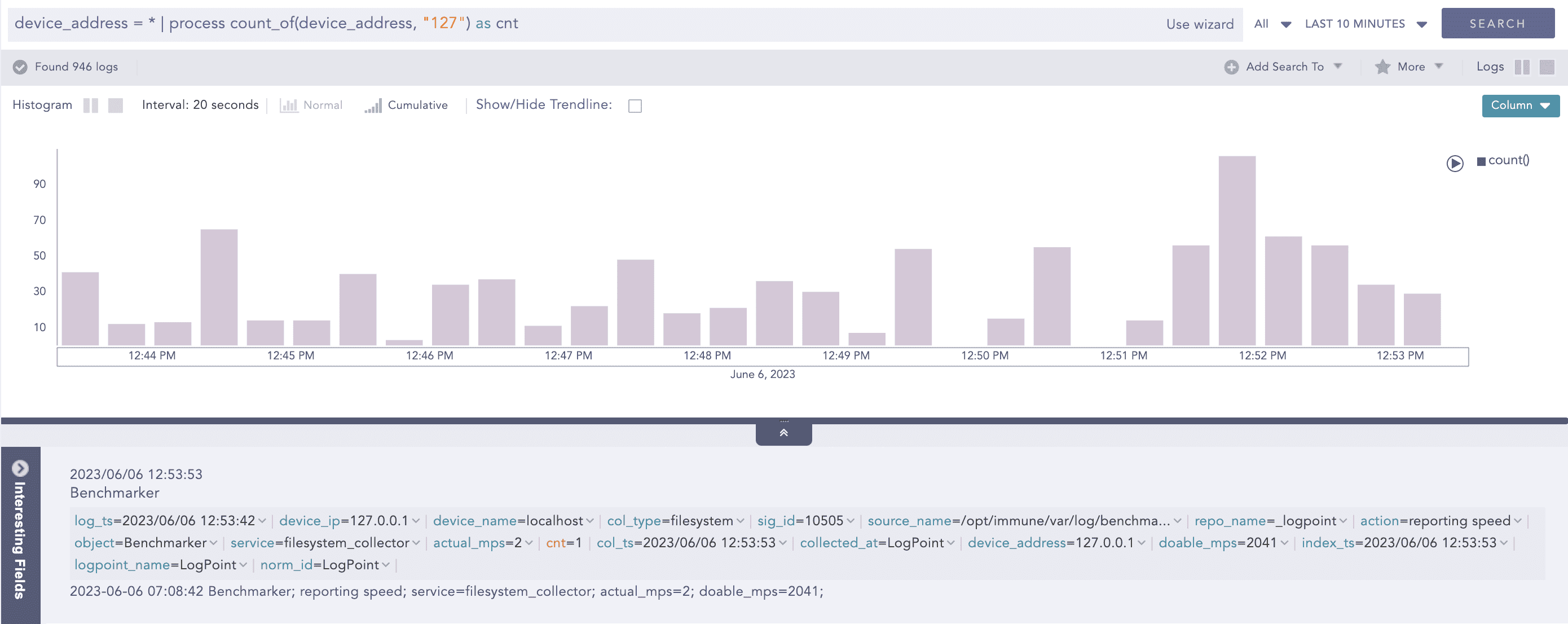
| process count_of (device_address, "127") as cnt
This query counts the occurance of 127 string in the value of device_address field and displays it in cnt.
Example:
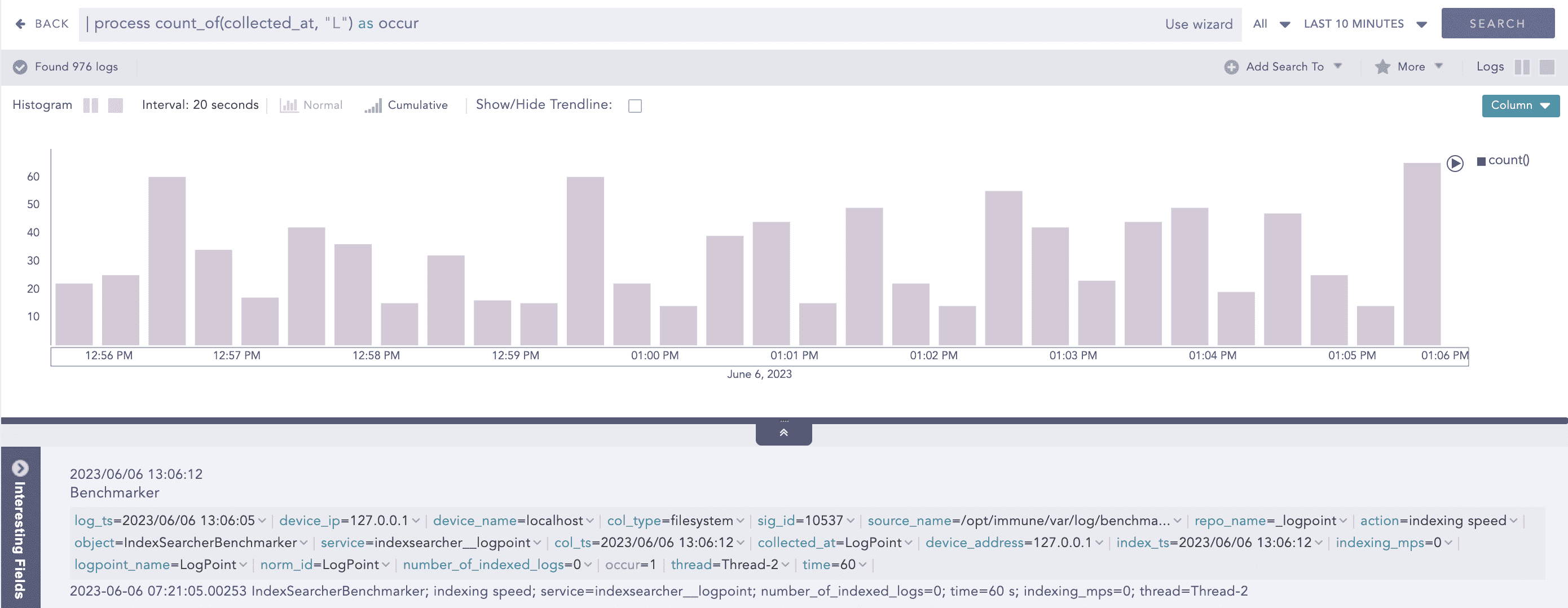
| process count_of (collected_at, "L") as occur
This query counts the occurance of L string in the value of collected_at field and displays it in occur.
Example:
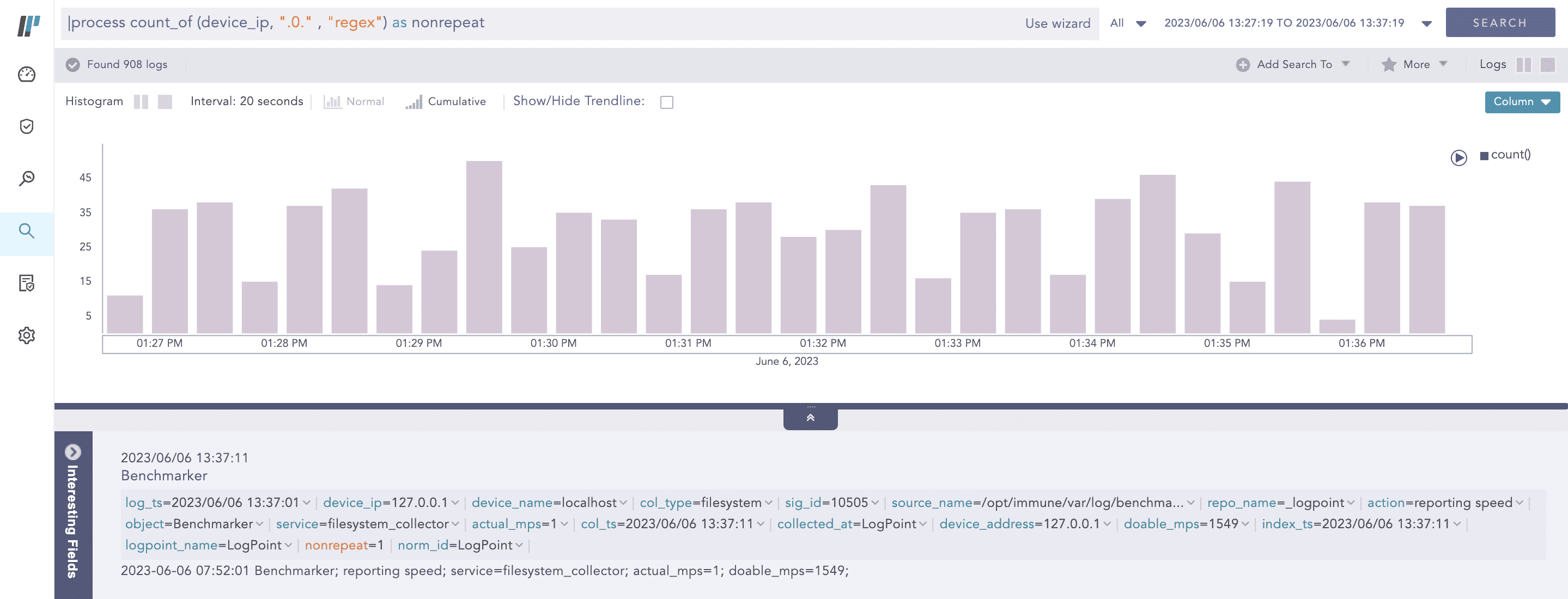
|process count_of (device_ip, ".0." , "regex") as nonrepeat
This query counts the occcurance of .0. string by applying regex pattern in the value of device_ip field and displays it in nonrepeat.
Current Time
Gets the current time from the user and adds it as a new field to all the logs. This information can be used to compare, compute, and operate the timestamp fields in the log message.
Syntax:
| process current_time(a) as string
Example:
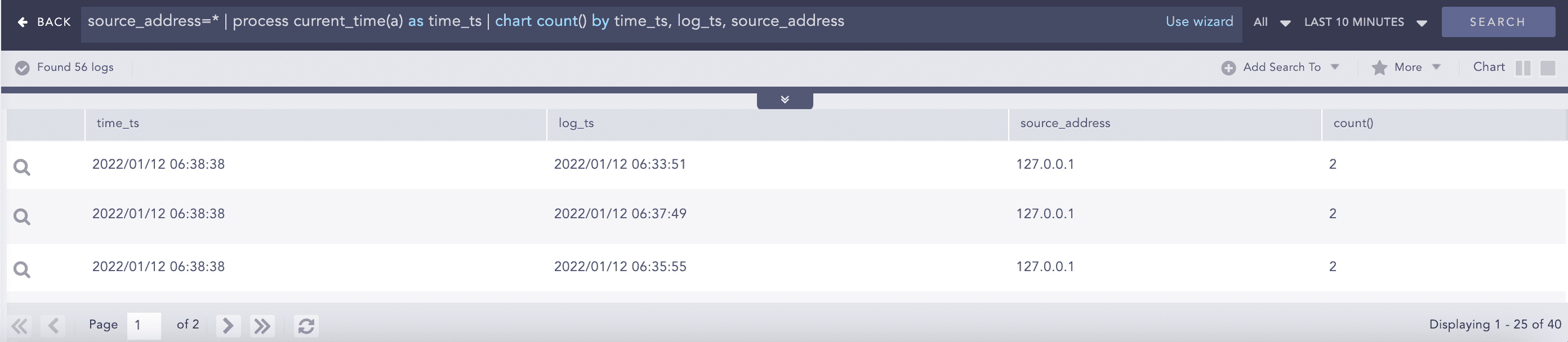
source_address=* | process current_time(a) as time_ts
| chart count() by time_ts, log_ts, source_address
DatetimeDiff
Processes two lists, calculates the difference between them, and returns the absolute value of the difference as the delta. The two lists must contain timestamps. It requires two first and second input parameters that are mandatory and can either be a list or a single field. The third parameter is mandatory and represents the required difference between the two input fields. This difference must be specified in either seconds, minutes or hours. The purpose of the third parameter is to determine how the difference between the two input fields can be represented. For instance, if the difference is specified in seconds, the output will show the absolute difference in seconds.
Syntax:
| process datetime_diff("seconds", ts_list1, ts_list2) as delta
Example:
| process datetime_diff("seconds",log_ts, col_ts) as diff | chart count() by diff
Difference
Calculates the difference between two numerical field values of a search.
Syntax:
| process diff(fieldname1,fieldname2) as string
Example:
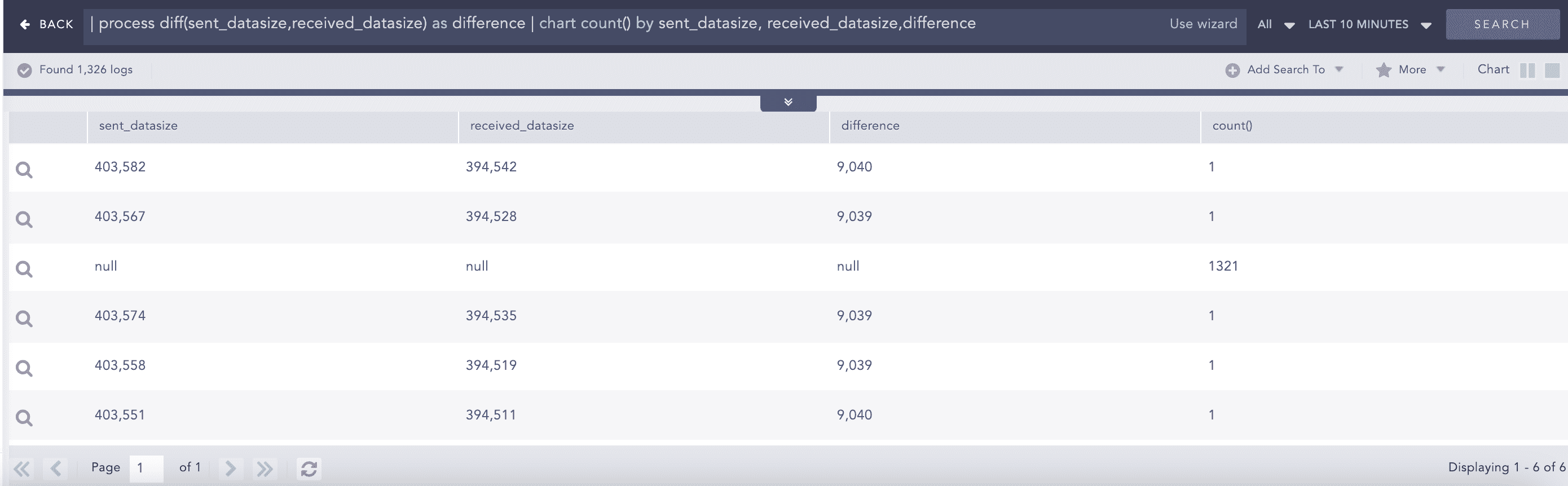
| process diff(sent_datasize,received_datasize) as difference
| chart count() by sent_datasize, received_datasize,difference
DNS Cleanup
Converts a DNS from an unreadable format to a readable format.
Syntax:
| process dns_cleanup(fieldname) as string
Example:
col_type=syslog | norm dns=<DNS.string>| search DNS=*
|process dns_cleanup(DNS) as cleaned_dns
| norm on cleaned_dns .<dns:.*>.
| chart count() by DNS, cleaned_dns, dns
DNS Process
Returns the domain name assigned to an IP address and vice-versa. It takes an IP address or a Domain Name and a Field Name as input. The plugin then verifies the value of the field. If the input is an IP Address, it resolves the address to a hostname and if the input is a Domain Name, it resolves the address to an IP Address. The output value is stored in the Field Name provided.
Syntax:
| process dns(IP Address or Hostname)
Example:
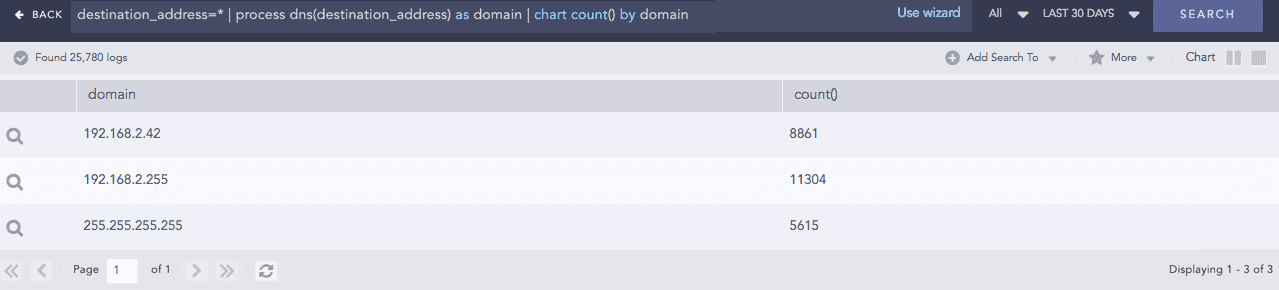
destination_address=* | process dns(destination_address) as domain
| chart count() by domain
Domain Lookup
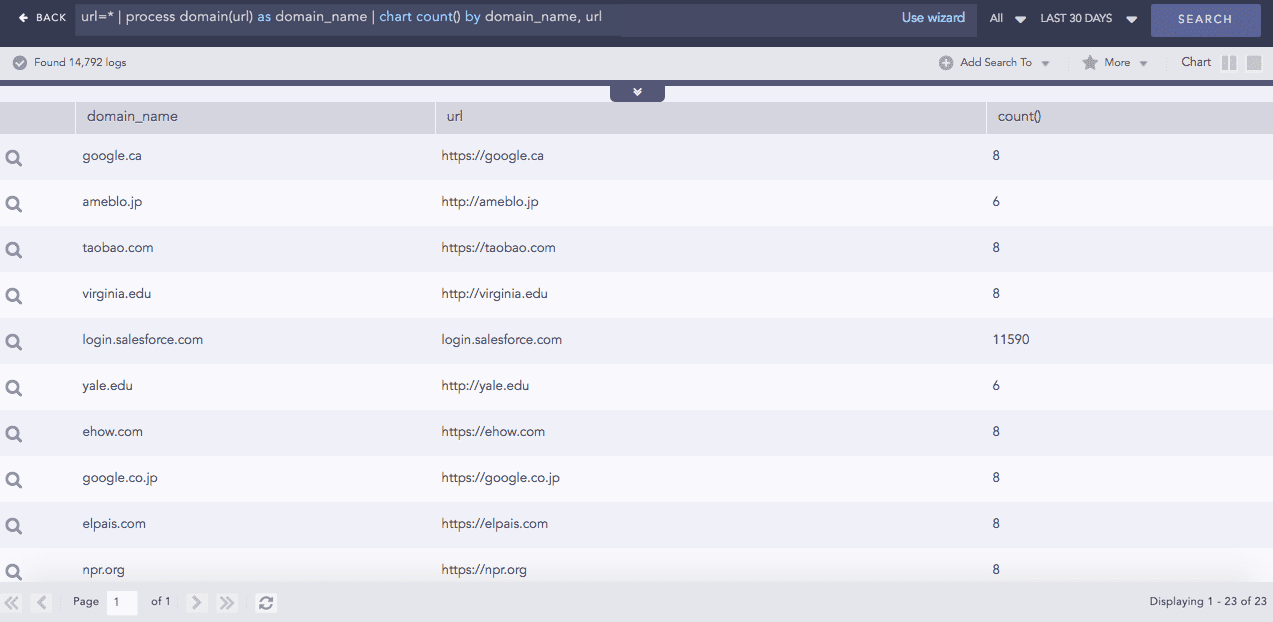
Provides the domain name from a URL.
Syntax:
| process domain(url) as domain_name
Example:
url=* | process domain(url) as domain_name |
chart count() by domain_name, url
Entropy
Entropy measures the degree of randomness in a set of data. This process command calculates the entropy of a field using the Shanon entropy formula and displays data in the provided field. A higher entropy number denotes a data set with more randomness, which increases the probability that a system artificially generated the values and could potentially lead to a malicious conclusion.
Syntax:
| process entropy (field) as field_entropy
Example:
device_address = *| process entropy (device_address) as test
Here, the “| process entropy (device_address) as test” command calculates the entropy of the device_address field and displays it in test.
Example:
| process entropy (url_address, url) as entropy_url
Here, the “| process entropy (url_address, url) as entropy_url” command takes url as an optional parameter and extracts the domain name from the url_address to perform entropy calculation on it and displays it in entropy_url.
Example:
| process entropy ("google.com", string) as en
Here, the “| process entropy (“google.com”, string) as en” command takes string as an optional parameter and calculates the entropy of google.com raw string field and displays it in en.
Eval
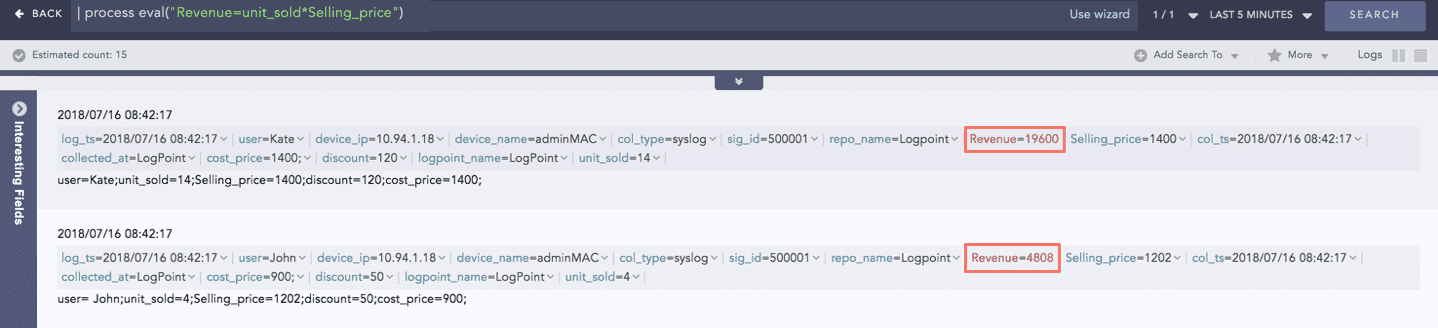
Evaluates mathematical, boolean and string expressions. It places the result of the evaluation in an identifier as a new field.
Syntax:
| process eval("identifier=expression")
Example:
| process eval("Revenue=unit_sold*Selling_price")
GEOIP
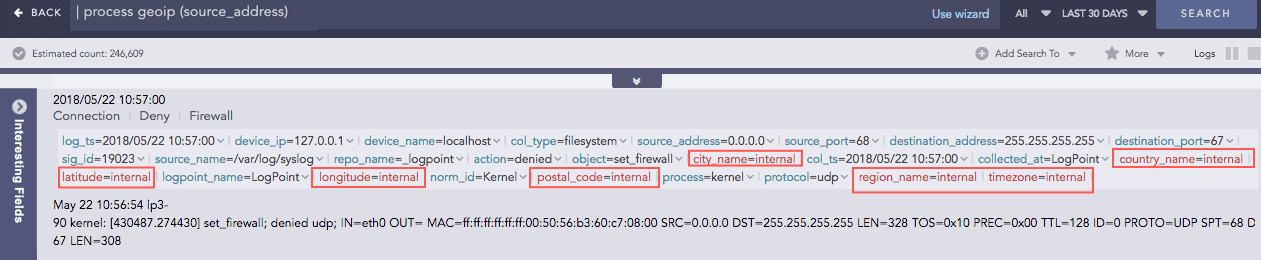
Gives the geographical information of a public IP address. It adds a new value “internal” to all the fields generated for the private IP supporting the RFC 1918 Address Allocation for Private Internets.
Syntax:
| process geoip (fieldname)
Example:
| process geoip (source_address)
For the Private IP:
For the Public IP:
Grok
Extracts key-value pairs from logs during query runtime using Grok patterns. Grok patterns are the patterns defined using regular expression that match with words, numbers, IP addresses, and other data formats.
Refer to Grok Patterns and find a list of all the Grok patterns and their corresponding regular expressions.
Syntax:
| process grok("<signature>")
A signature can contain one or more Grok patterns.
Example:
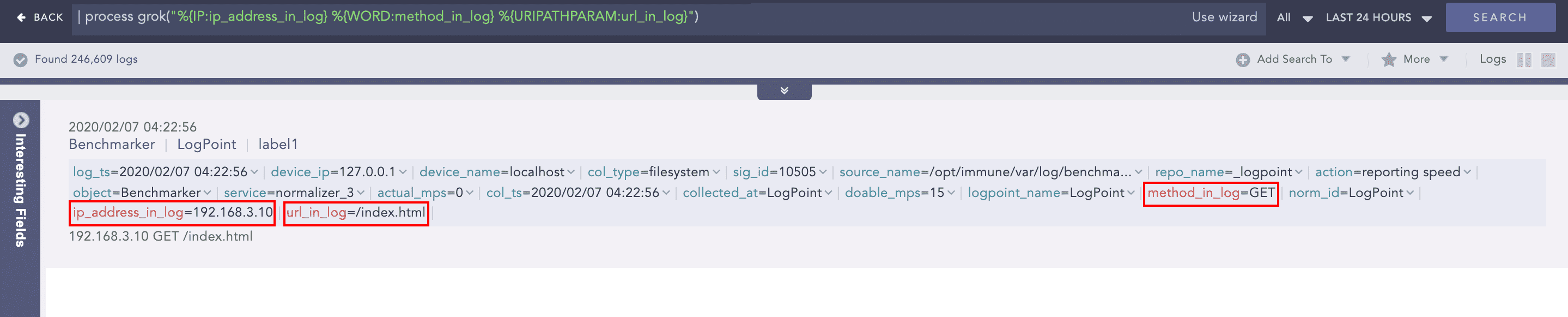
To extract the IP address, method, and URL from the log message:
192.168.3.10 GET /index.html
Use the command:
| process grok("%{IP:ip_address_in_log} %{WORD:method_in_log} %{URIPATHPARAM:url_in_log}")
Using this command adds the ip_address_in_log, method_in_log, and url_in_log fields and their respective values to the log if it matches the signature pattern.
InRange
Determines whether a certain field-value falls within the range of two given values. The processed query returns
TRUE if the value is in the range.
Syntax:
| process in_range(endpoint1, endpoint2, field, result, inclusion)

where,

endpoint1 and endpoint2 are the endpoint fields for the range,
the field is the fieldname to check whether its value falls within the given range,
result is the user provided field to assign the result (TRUE or FALSE),
inclusion is the parameter to specify whether the range is inclusive or exclusive of
given endpoint values. When this parameter is TRUE, the endpoints will be included for
the query and if it is FALSE, the endpoints will be excluded.
Example:
| process in_range(datasize, sig_id, duration,Result, True)
IP Lookup
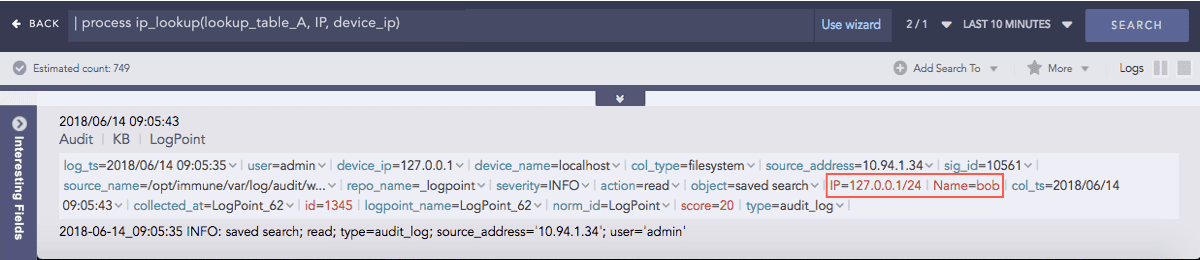
Enriches the log messages with the Classless Inter-Domain Routing (CIDR) address details. A list of CIDRs is uploaded in the CSV format during the configuration of the plugin. For any IP Address type within the log messages, it matches the IP with the content of the user-defined Lookup table and then enriches the search results by adding the CIDR details.
Syntax:
| process ip_lookup(IP_lookup_table, column, fieldname)
 where IP_lookup_table is the lookup table configured in the plugin,
 Column is the column name of the table which is to be matched
  with the fieldname of the log message.
Example:
| process ip_lookup(lookup_table_A, IP, device_ip)
This command compares the IP column of the lookup_table_A with the device_ip field of the log and if matched, the search result is enriched.
JQ Parser
Applies the JQ filter to the fields with valid JSON field values of normalized logs and extracts key values from that field. The JQ filter defines a path for extracting the required data from a JSON file and has a wide variation and functionality. Go to Basic filters, to learn more about the supported filter formats for JQ Parser.
Syntax:
| process jq_parser (field name, "filter") as field name
Example:
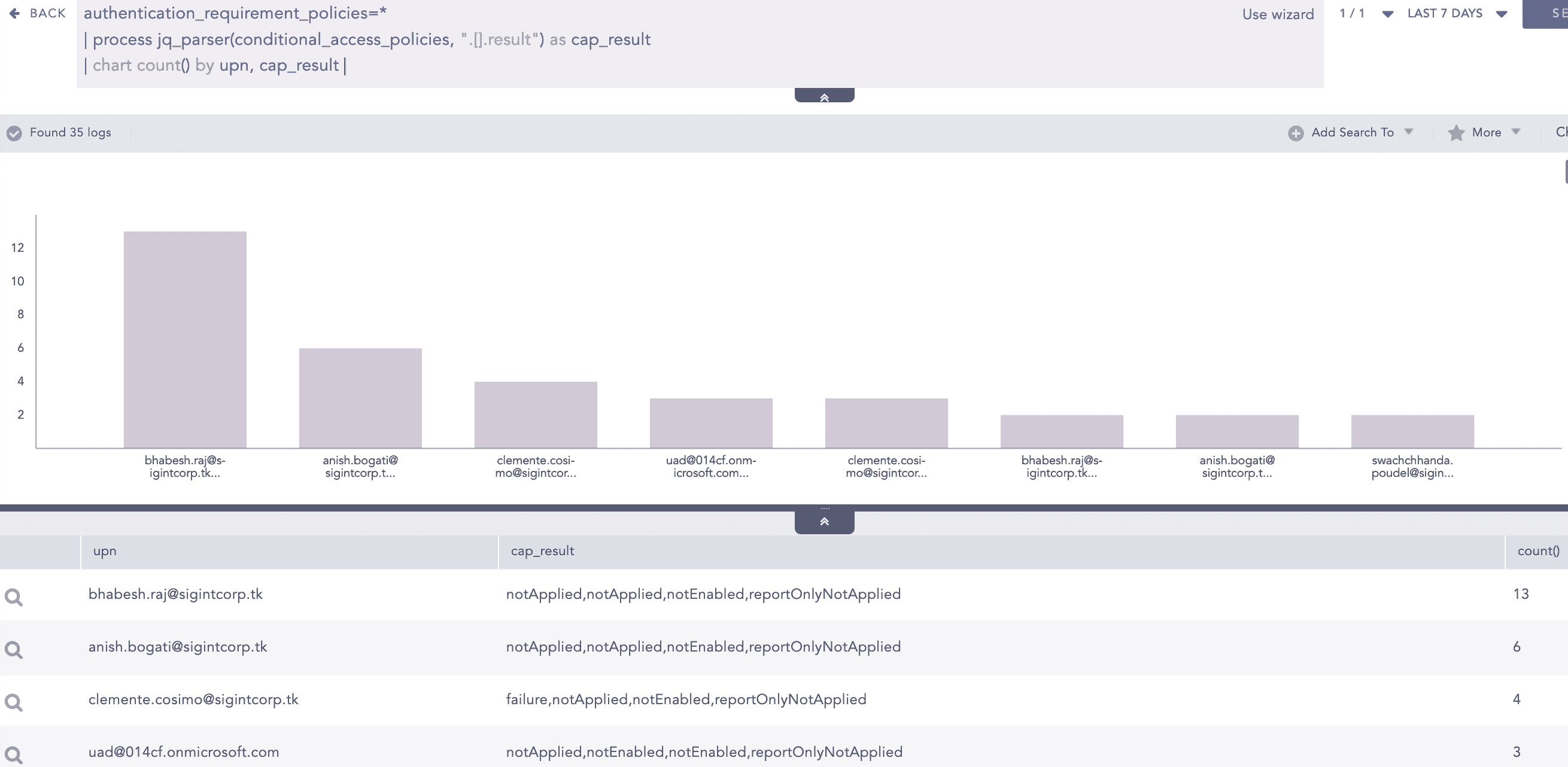
| process jq_parser (conditional_access_policies, ".[].result") as cap_result
Here, the “| process jq_parser (conditional_access_policies, “.[].result”) as cap_result” query applies [] (array filter) and result filter to the conditional_access_policies field and extracts the key values to the cap_result field.
JSON Expand
Takes the field with a valid JSON array value and creates separate log instances for individual array items of that field. Each array item takes the original field name.
Syntax:
| process json_expand (field name)
Example:
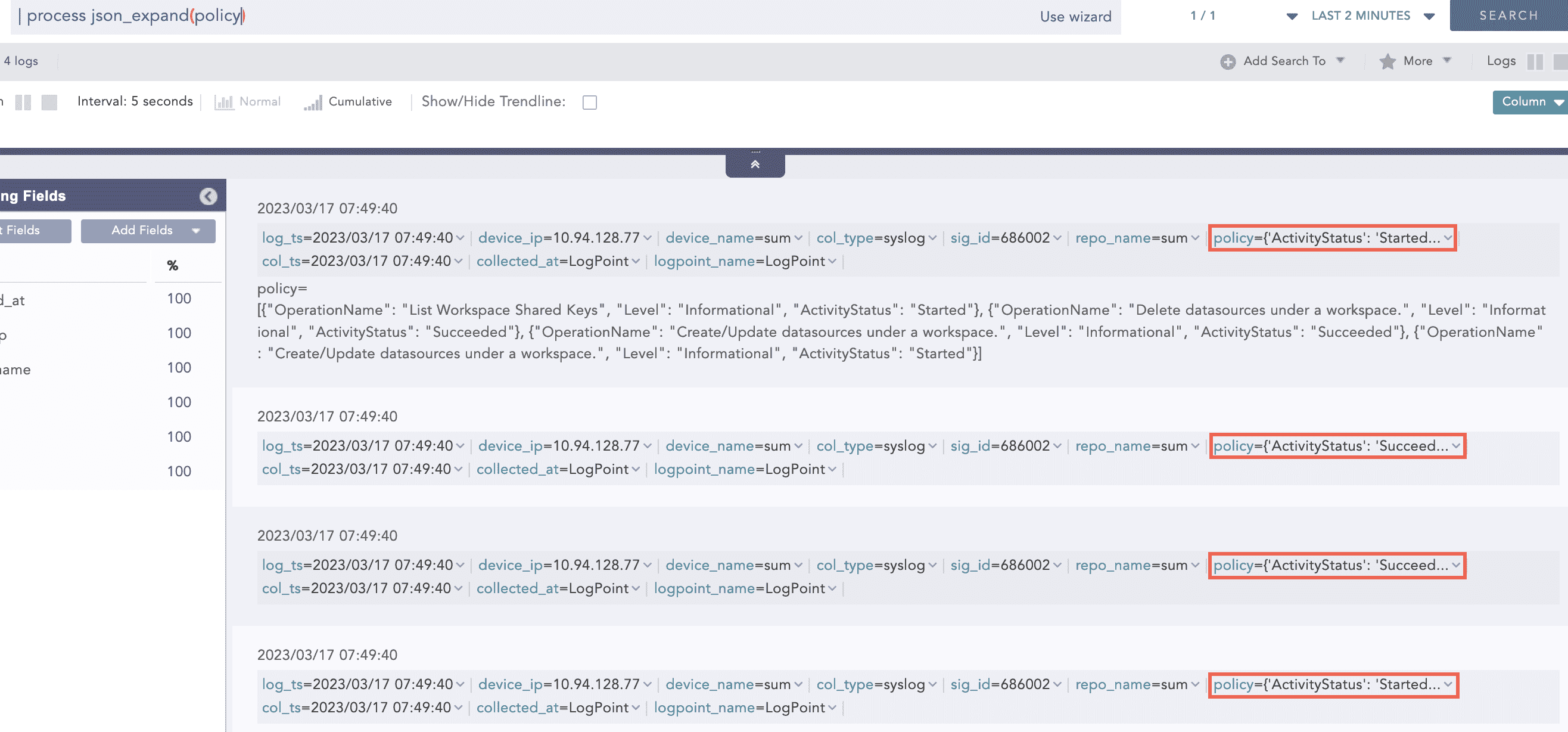
| process json_expand (policy)
Here, the “| process json_expand (policy)” query expands the policy field into four log instances. After expansion, each array item takes the policy as a field name.
JSON Parser
The JavaScript Object Notation (JSON) Parser reads JSON data and extracts key values from the fields with valid JSON field values of normalized logs. A string filter is applied to the provided field, which defines a path for extracting values from it. The filter contains a key, which can be alphanumeric and special characters except square brackets ([]), backtick (`) and tilde (~). These exceptional characters are reserved for essential use cases, such as mapping the list and selecting a condition in JSON Parser.
The supported filter formats for JSON Parser are:
Chaining for nested JSON
Example: .fields.user.Username
Array access
Syntax:
| process json_parser (field name, "filter") as field name
JSON Parser supports map and select functions for applying filters with true conditional statements. The supported conditional operators are: =, !=, >, < , >= and <=.
General syntax to use map and select functions:
| process json_parser(field name, ".[condition]") as field name
Example:
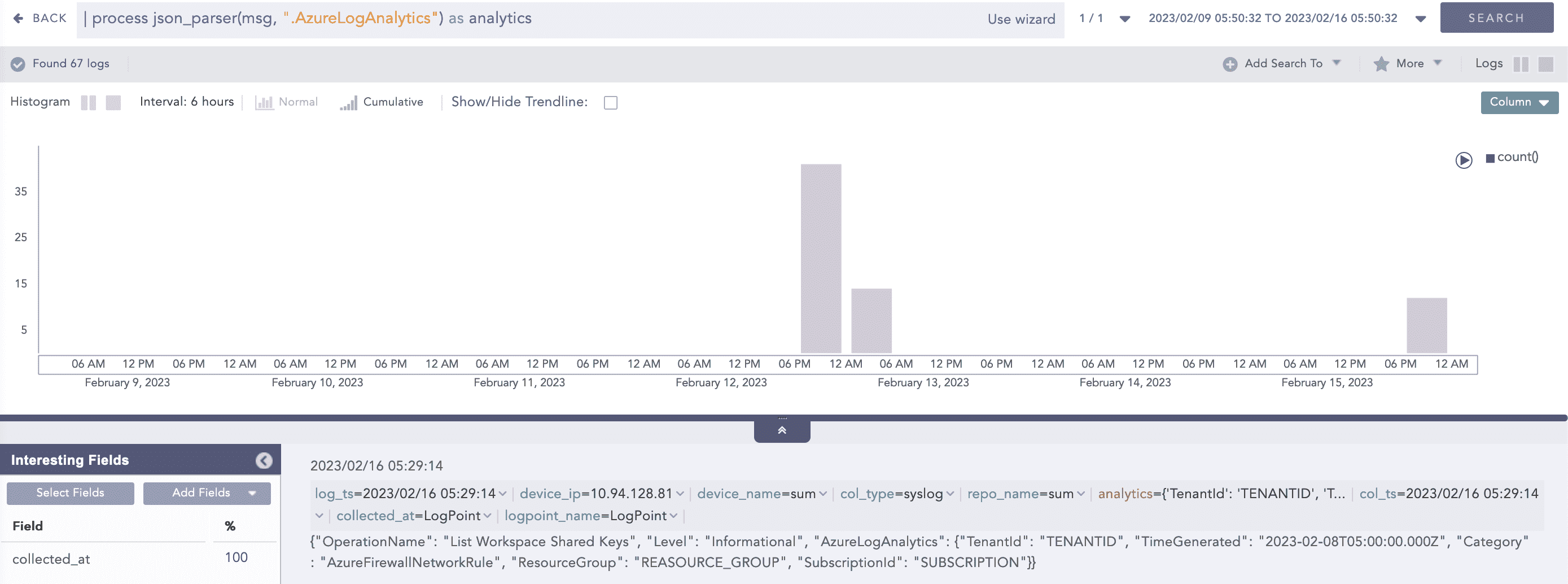
| process json_parser (msg, ".AzureLogAnalytics") as analytics
Here, the “| process json_parser (msg, “.AzureLogAnalytics”) as analytics” query applies the AzureLogAnalytics filter to the msg field and extracts the key values to the analytics field.
Example:
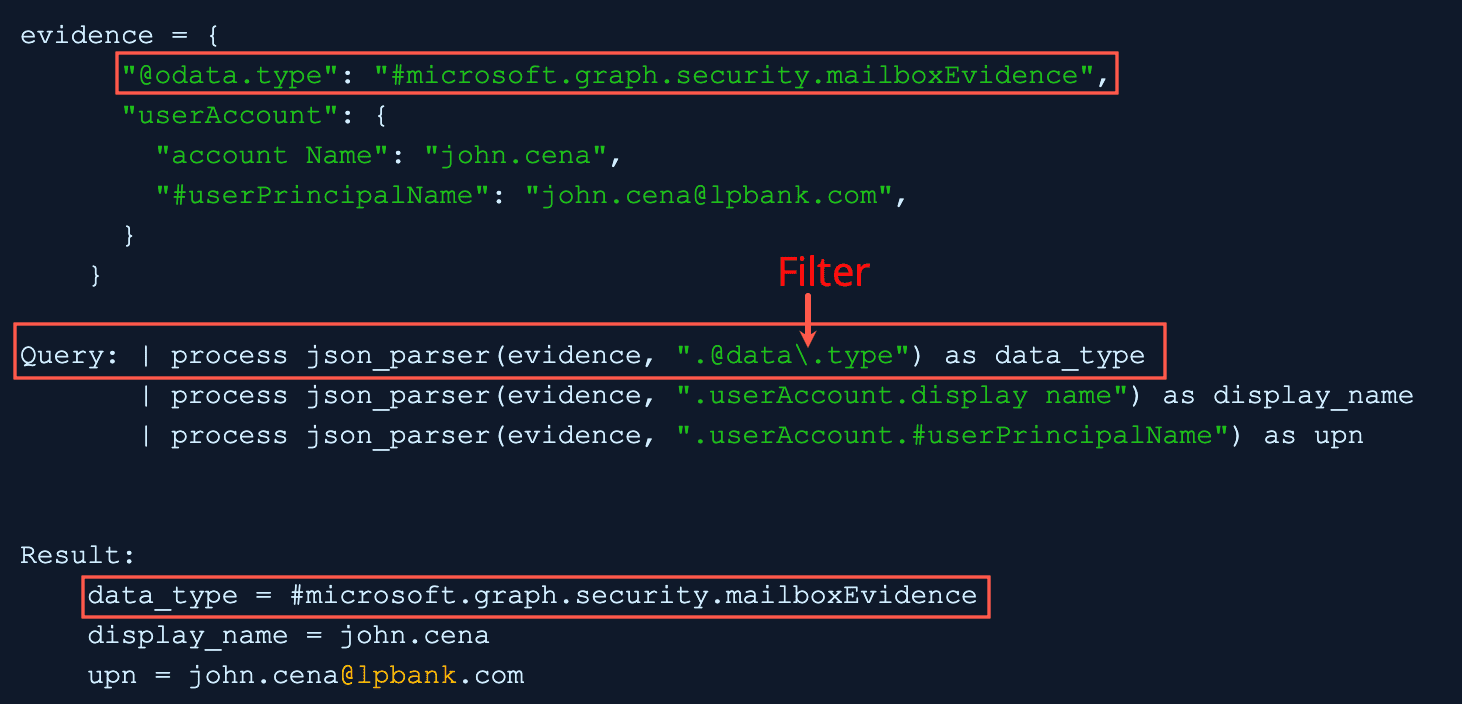
In filter, the backslash escaped the period before type and query applies the filter to the evidence field and extracts the key value to the data_type field.
Example:
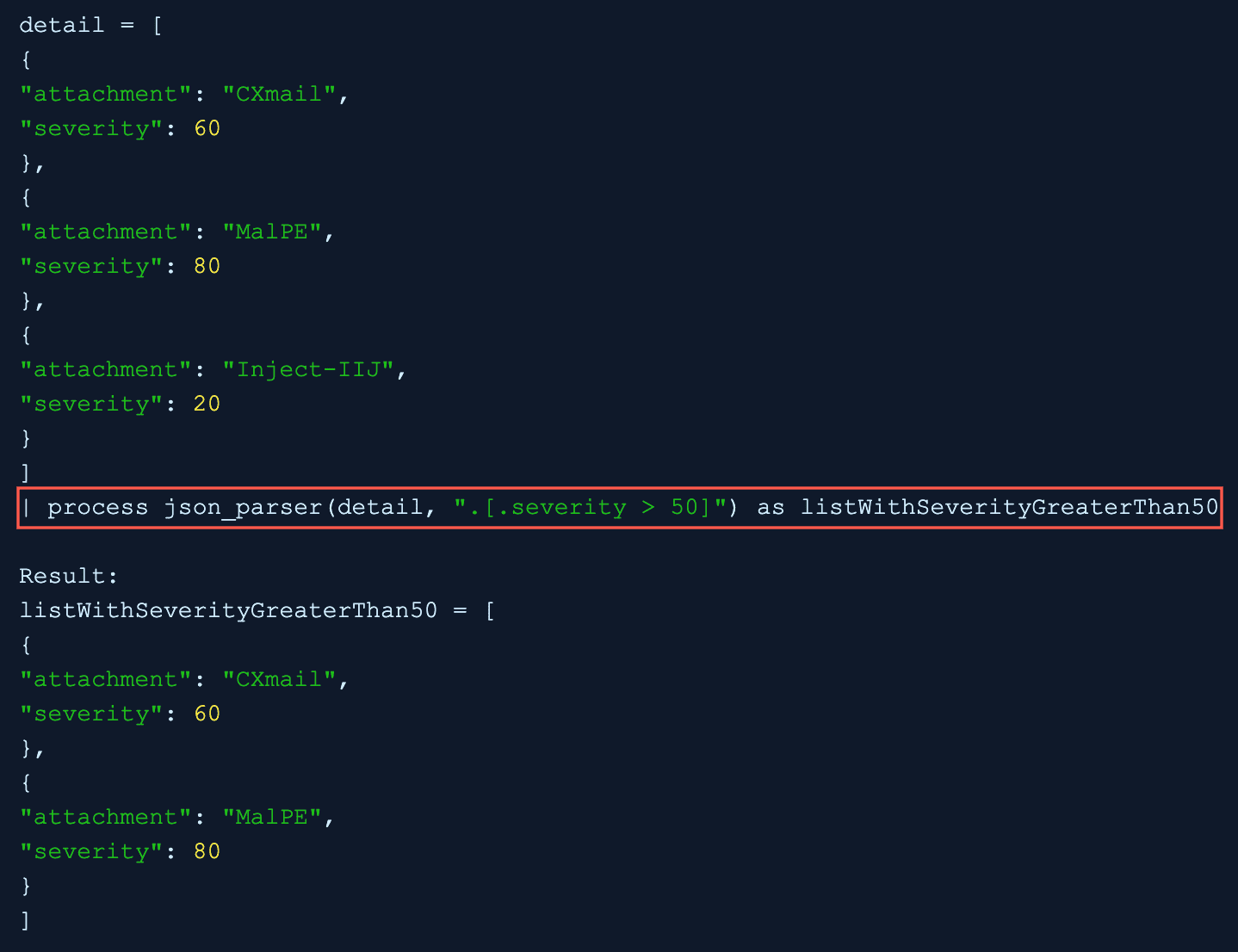
In the .[.severity>50] filter, a conditional statement severity>50 is used and the “| process json_parser(detail, “.[.severity > 50]”) as listWithSeverityGreaterThan50” query applies the filter to the detail field and extracts the list of key values with the true condition to the listWithSeverityGreaterThan50 field.
ListLength
Returns the number of elements in the list.
Syntax:
| process list_length(list) as length
Example:
| chart distinct_list(actual_mps) as lst | process list_length(lst) as lst_length
ListPercentile
Calculates the percentile value of a given list. It requires at least two input parameters. The first parameter is mandatory and must be a list. This command can also accept up to five additional parameters. The second parameter must be an alias, which is used in conjunction with the percentile percentage to determine the required percentile. The alias is concatenated with the percentile percentage to store the required percentile value.
Syntax:
| process list_percentile(list, 25, 75, 95, 99) as x

Result: x_25th_percentile = respective_value
    x_75th_percentile = respective_value
    x_95th_percentile = respective_value
    x_99th_percentile = respective_value

General:
| process list_percentile(list,p) as aliasalias_pth_percentile
Example:
| actual_mps=* chart distinct_list(actual mps) as a | process list_percentile(a, 50, 95,99) as x | chart count() by a,
x_50th_percentile, x_95th_percentile, x_99th_percentile
Next
Takes a list and an offset as input parameters and returns a new list where the elements of the original list are shifted to the left by the specified offset. The maximum allowable value for the offset is 1024. For example, if the original list is [1, 2, 3, 4, 5, 6] and the offset is 1, the resulting list would be [2, 3, 4, 5, 6]. Similarly, if the offset is 2, the resulting list would be [3, 4, 5, 6]. This command requires two parameters as input. The first is mandatory and must be a list. The second parameter is mandatory and represents the offset value. An alias of 1 must be provided as input.
Syntax:
| process next(list, 1) as next_list| process next(list, 2) as next_list_2
Example:
| chart list(user) as list | process next(list, 1) as next_list | chart count() by list next_list
Percentile
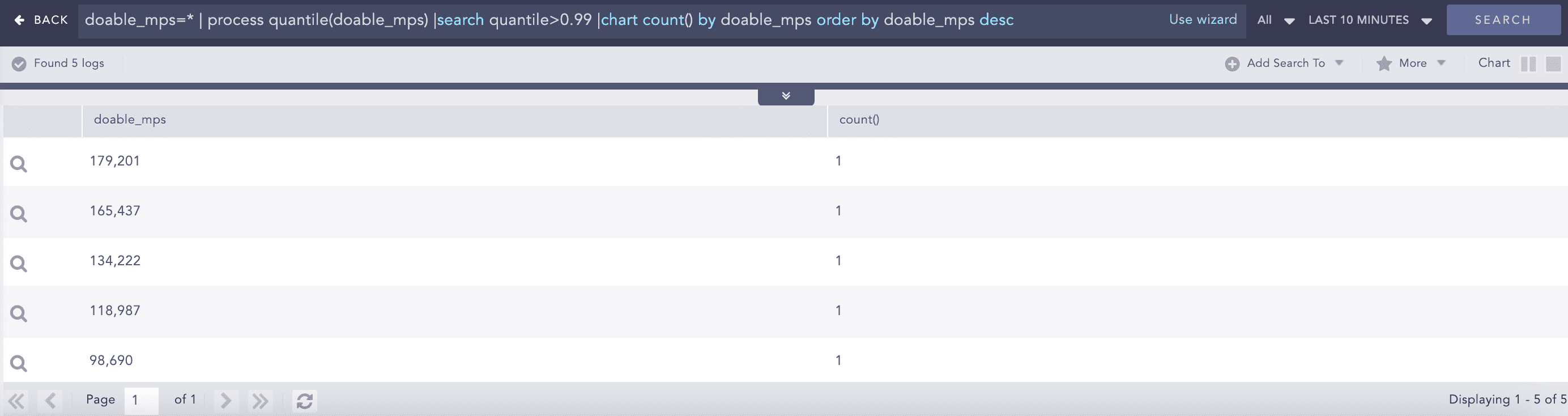
Percentiles are numbers below which a portion of data is found. This process command calculates the statistical percentile from the provided field and informs whether the field’s value is high, medium or low compared to the rest of the data set.
Syntax:
| chart percentile (field name, percentage)
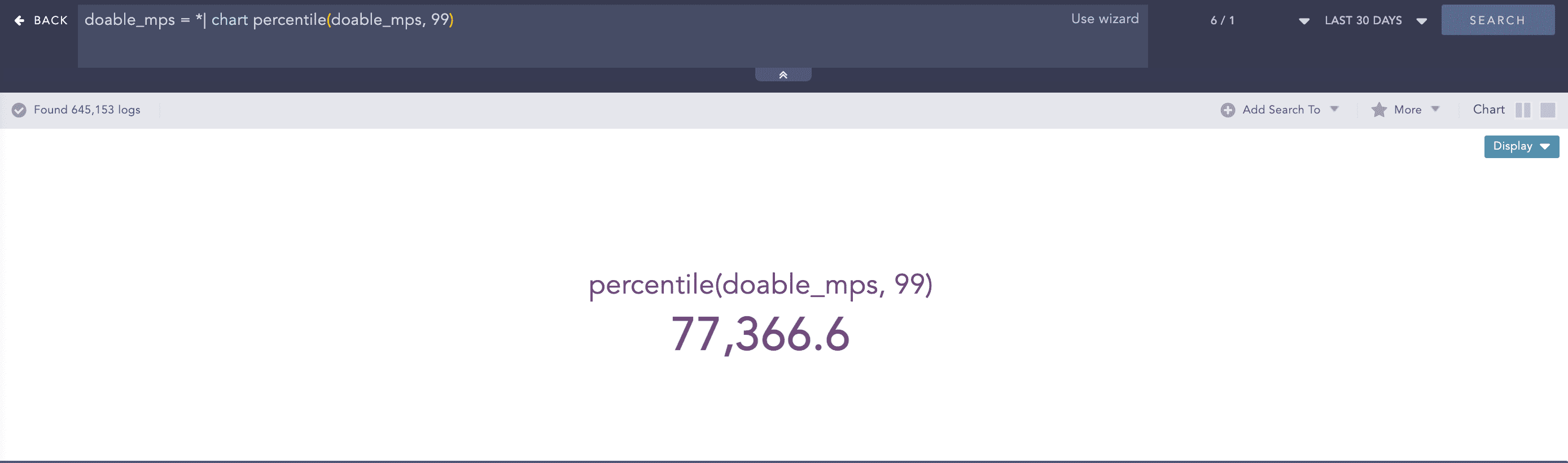
Example:
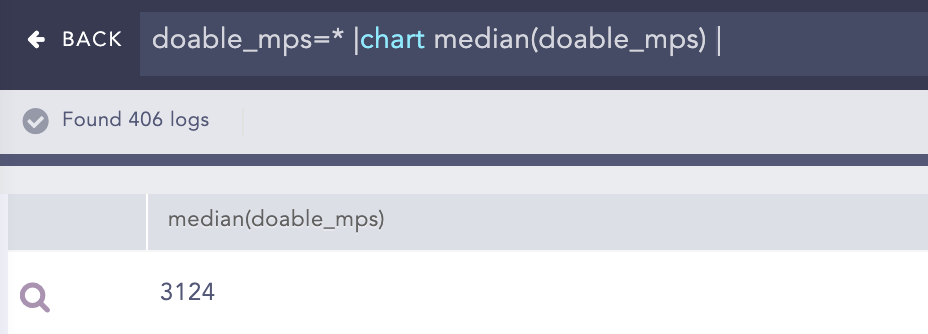
doable_mps = *| chart percentile (doable_mps, 99)
Here, the “| chart percentile (doable_mps, 99)” command calculates the percentile for the value of the doable_mps field.
Process lookup
This process command looks up related data from a user defined table.
Syntax:
| process lookup(table,field)
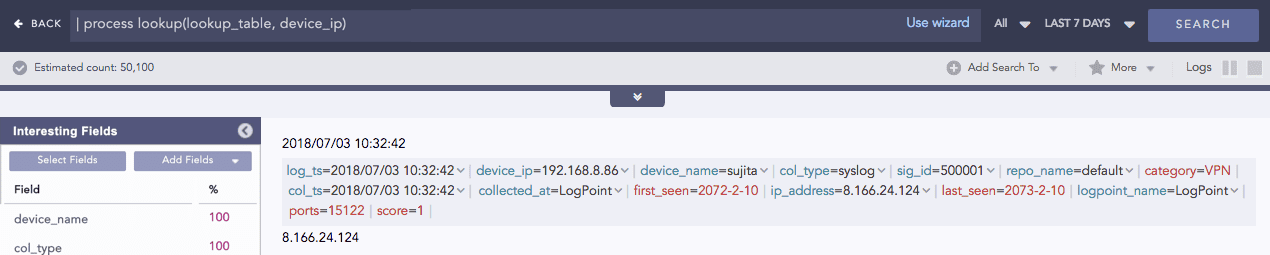
Example:
| process lookup(lookup_table, device_ip)
Regex
Extracts specific parts of the log messages into custom field names.
Syntax:
| process regex("_regexpattern", _fieldname)
| process regex("_regexpattern", "_fieldname")

Both syntaxes are valid.
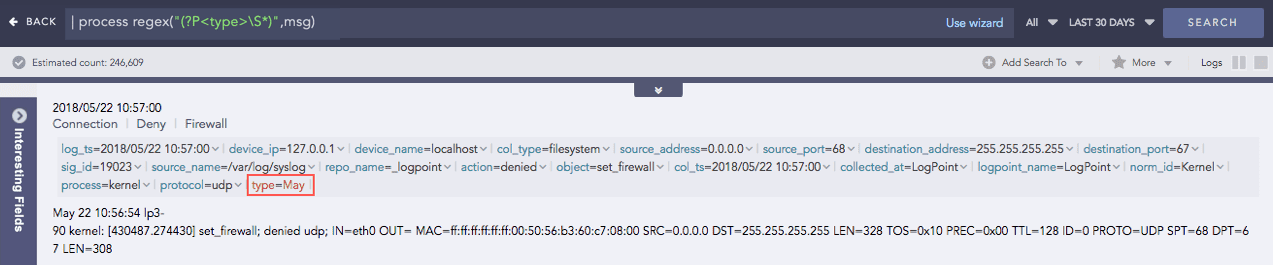
Example:
| process regex("(?P<type>\S*)",msg)
SortList
Sorts a list in ascending or descending order. By default, the command sorts a list in ascending order. The first parameter is mandatory and must be a list. The second parameter desc is optional.
Syntax:
| process sort_list(list) as sorted_list
| process sort_list(list, "desc") as sorted_list
Example:
chart distinct list(actual_mps) as lst | process sort_list(lst) as LP_KB_Dynamictable_Populate_Values | chart count by lst, sorted list
String Concat
Joins multiple field values of the search results.
Syntax:
| process concat(fieldname1, fieldname2, ...., fieldnameN) as string
Example:
| process concat(device_name,device_ip) as device
Summation
Calculates the sum between two numerical field values of a search.
Syntax:
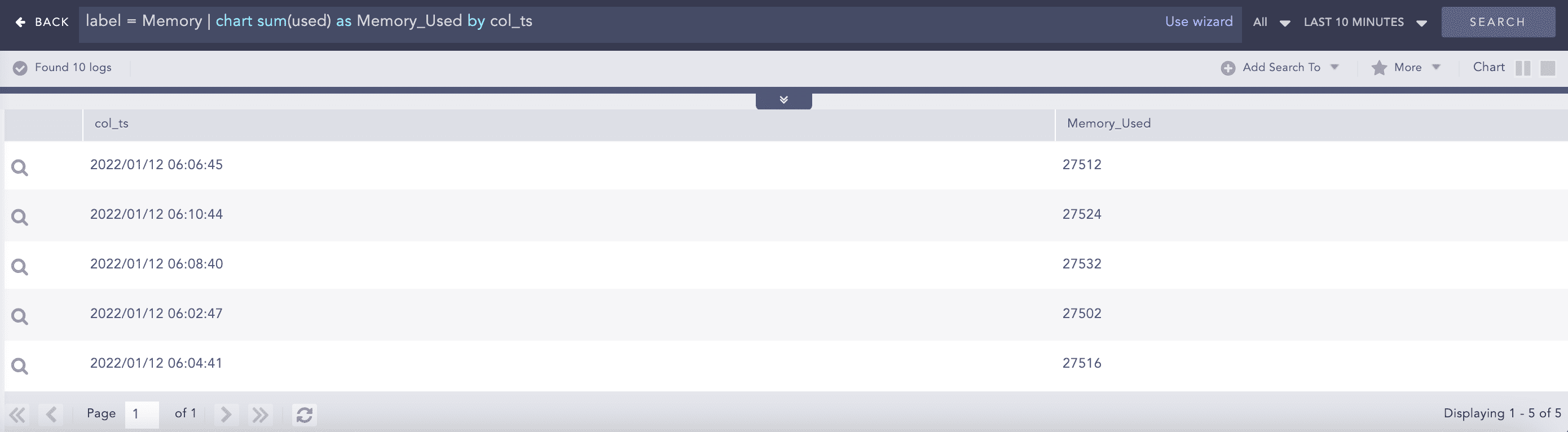
Example:
label = Memory | chart sum(used) as Memory_Used by col_ts
toList
Populates the dynamic list with the field values of the search result.
Syntax:
| process toList (list_name, field_name)
Example:
device_ip=* | process toList(device_ip_list, device_ip)
toTable
Populates the dynamic table with the fields and field values of the search result.
Syntax:
| process toTable (table_name, field_name1, field_name2,...., field_name9)
Example:
device_ip=* | process toTable(device_ip_table, device_name, device_ip, action)
WhoIsLookup
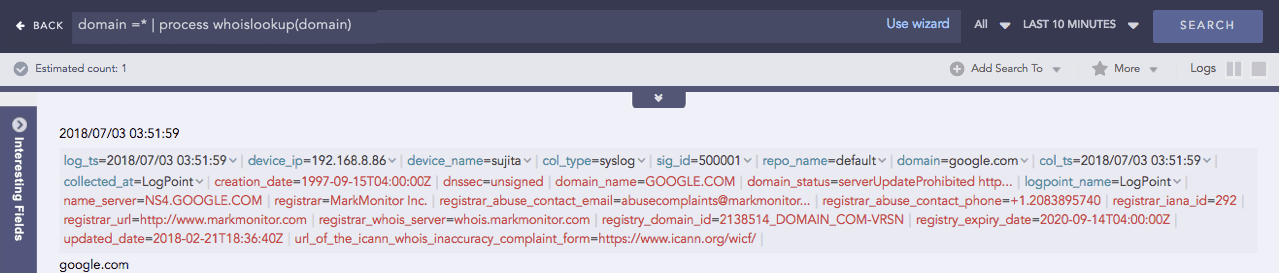
Enriches the search result with the information related to the given field name from the WHOIS database.The WHOIS database consists of information about the registered users of an Internet resource such as registrar, IP address, registry expiry date, updated date, name server information and other information. If the specified field name and its corresponding value are matched with the equivalent field values of the WHOIS database, the process command enriches the search result, however, note that the extracted values are not saved.
Syntax:
| process whoislookup(field_name)
Example:
| chart distinct_list(log_ts) as log_ts_list, distinct_list(col_ts) as col_ts_list
| process datetime_diff("seconds", log_ts_list, col_ts_list) as delta
| chart count() by log_ts_list, col_ts_list, delta`

    domain =* | process whoislookup(domain)